
https://ostechnix.com/view-cpu-temperature-linux
This brief tutorial describes how to view CPU temperature on Linux using lm_sensors. The Lm_sensors, short for Linux-monitoring sensors, is a free software that provides the necessary tools and drivers for monitoring CPU temperatures, voltage, humidity, and fans. It can also detect chassis intrusions. So, you can find out a defective hardware components, and replace it to avoid the system hanging or overheating issues.
Install lm_sensors on Linux
Lm_sensors comes pre-installed with most modern Linux operating systems. If it is not installed already, you can install it as shown below.
On Arch Linux and its derivatives:
On RHEL, CentOS, Fedora:
Or,
On Debian, Ubuntu, Linux Mint:
On SUSE, openSUSE:
Configure Lm_sensors
Once installed, run the following command to configure lm_sensors:
The sensors-detect is a stand-alone program for detecting installed hardware and recommending specific modules to load. The "safe" answers are the defaults, so just hit to ENTER the accept the default values. It won't cause any problems. This will create the /etc/conf.d/lm_sensors configuration file which is used by lm_sensors.service to automatically load kernel modules on boot.
The sample output of the above command in my DELL Laptop:
Done! Let us go ahead and see how to use find the CPU temperature.
View CPU Temperature On Linux Using Lm_sensors
Type the following command to view the CPU temperature information of your Linux box:
Sample output:
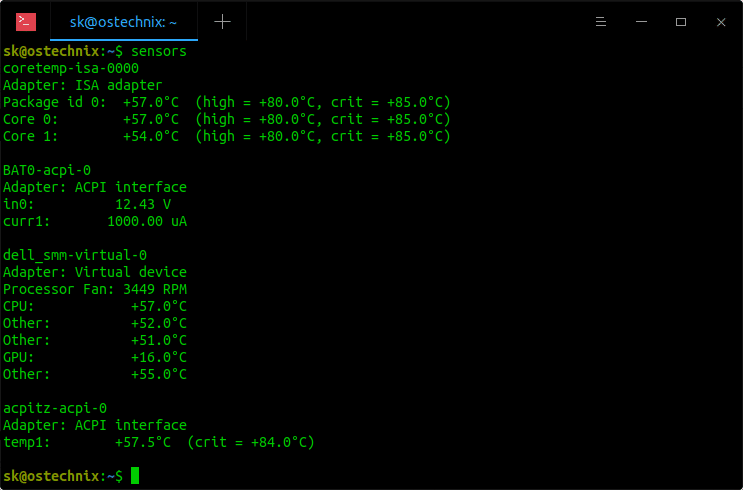
View CPU Temperature On Linux Using Lm_sensors
As you see in the above output, lm_sensors displays my CPU's current temperature, high and critical temperature in the brackets. If you find out any of your hardware devices reaches high or critical temperature, you probably need to check that hardware device.
By default, Lm_sensors displays the temperature in Celsius.
To display the temperatures in Fahrenheit instead of Celsius, use -f option.
Sample output:
To monitor the CPU temperature in real time, you can use 'watch' command like below.
Sample output:
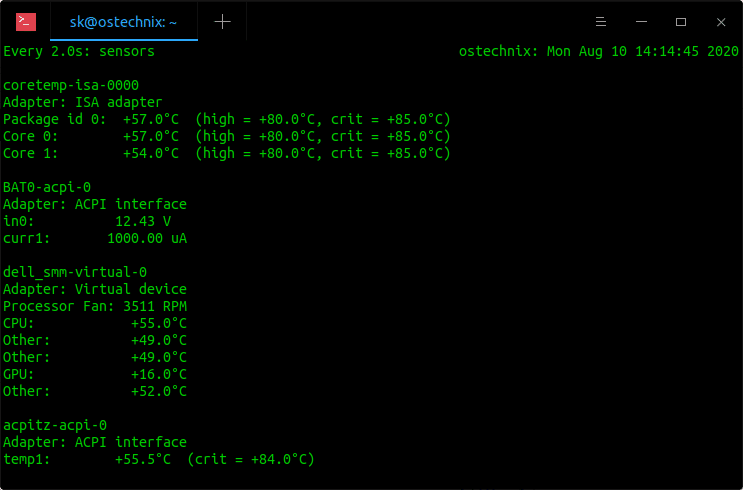
Monitor CPU temperature in real time with lm_sensors in Linux
The result will update every 2 seconds. Press CTRL+C to stop the monitoring at any time.
For more details, refer the man pages.
Resource:
Thanks for stopping by!
